Below is a consolidated list of functionalities for the Snap4City 3D Digital Twin / Widget3DMap, taking into account the Digital Twin page and the attached Widget3DMap with 3D Building Editor Documentation. The Snap4City 3D Digital Twin already supports 3D city visualization, runtime layers, IoT/service pins, traffic and environmental data, predictions, routing, OD matrices, what-if analysis, dashboards, and maintenance/event-management features. (digitaltwin.snap4city.org) The attached document extends this with a 3D building editor for uploading, positioning, storing, and reusing custom GLB models.
1. 3D city digital twin visualization
- 3D terrain visualization with orthomaps and heatmaps.
- 3D buildings, urban elements, roads, decorations, trees, and additional 3D entities.
- Multiple map layers with configurable opacity.
- Support for different 3D building representations, including extruded buildings, high-value meshes, roof reproduction from LiDAR, and textured models.
- Support for Google 3D Tiles as an alternative representation layer, while keeping other Snap4City entities overlaid on top. (digitaltwin.snap4city.org)
2. Interactive map and entity exploration
- Building picking / selection from the 3D map.
- Side panel showing building metadata after selection.
- Access to real-time IoT data associated with selected buildings.
- Selection of services and IoT entities represented as clickable PINs.
- Visualization of POIs, bus stops, parking, traffic, environmental data, public transport, smart lights, control assets, and other city services. (digitaltwin.snap4city.org)
3. 3D building model catalogue
- Display the list of available 3D models for a selected building.
- Switch between default and alternative 3D models.
- Associate multiple 3D models with the same building through
3DModelList. - Store the first model as the default local path and additional models as SURI links to
3DModelBuildingentities. - Keep backward compatibility with legacy
buildingModelentities; ifbuildingModel_v2is not available, the system shows legacy building information and disables the 3D editor.
4. 3D building editor
- HOW TO edit: Digital Twin: Snap4City 3D Building Editor Documentation
- Activate the editor from the Building New Tiled option.
- Select an existing building from the 3D map.
- Open the 3D editor for buildings where the user has ownership or write delegation.
- Load a new
.glbmodel from the user’s computer. - Place the uploaded model directly inside the 3D digital twin.
- Interactively edit the model with a gizmo:
- Position with keyboard key
1. - Rotation with keyboard key
2. - Scale with keyboard key
3.
- Position with keyboard key
- Use
CTRLto interact with the transform gizmo. - Use orthographic/top-down view for more precise positioning.
- Keep the custom model aligned with the map projection and depth buffer so it is correctly positioned, occluded, and moved with the rest of the 3D city scene.
5. Upload, storage, and persistence
- Upload new 3D models into the Snap4City knowledge base.
- Bake the user’s edits into the 3D model geometry.
- Save the transformed model as a new file entity.
- Create a
fileModelentity to store the reference to the actual binary GLB file. - Create a
3DModelBuildingentity to store model metadata. - Associate the new
3DModelBuildingentity with the correspondingbuildingModel_v2. - Make the new model immediately available in the building’s model catalogue after saving.
6. 3D model metadata management
- Store model description.
- Store model kind / level of detail, for example LOD1, LOD3, BIM, or similar.
- Store
dateObserved. - Store
dateTime, useful for what-if and scenario-based modelling. - Store the SURI link to the file device that contains the binary model.
- Maintain building metadata such as city, address, OSM ID, building type, number of levels, height, accessibility, website, Wikidata, Wikipedia, ground shape, and model list.
7. Access control and ownership
- Only registered users with ownership or write delegation can add a model to a building.
- Uploaded 3D files are created as private devices owned by the uploading user.
- Only the owner or authorized delegated users can substitute the default building model with uploaded custom models.
- Unauthorized users cannot access private 3D models without sufficient permissions.
8. Model validation and technical constraints
- Accept 3D models in GLTF/GLB format.
- Require the GLB file to include material information to avoid corrupted-looking vertex colors.
- Support DRACO-compressed GLB files.
- Enforce a maximum supported size of about 50 MB for DRACO-compressed GLB files.
- Require the GLB file to contain one and only one mesh.
- Provide guidance on decimation/compression: in the attached tests, models compressed below the 50 MB DRACO threshold were usable, while larger ones produced errors related to peak WASM decoder memory.
9. What-if and scenario functionalities
- Add alternative building models to represent future, planned, temporary, or hypothetical urban configurations.
- Swap between existing/default and user-added 3D models.
- Use
dateTimein3DModelBuildingto reference scenarios over time. - Support visual comparison of urban design alternatives.
- Support decision-making, simulation, and planning use cases through Snap4City’s broader what-if analysis tools. (digitaltwin.snap4city.org)
10. Mobility, traffic, and environmental functionalities
- Visualize traffic density with 3D animated arrows, crests, columns, pillars, or pins.
- Show traffic sensors as 3D columns.
- Show heatmaps and animated heatmaps for people flow, traffic flow, weather, pollutants, air quality indexes, KPIs, and related indicators.
- Display predictions for traffic, pollutants, weather conditions, critical events, parking, people flow, and KPIs.
- Display OD matrices and animated OD matrices.
- Support routing, dynamic routing, constrained routing, and multimodal routing. (digitaltwin.snap4city.org)
11. Dashboard and operational functionalities
- Integrate the 3D digital twin inside Snap4City dashboards.
- Combine the 3D map with additional widgets.
- Update widgets interactively using client-side business logic.
- Support ticketing for maintenance.
- Support event management and early warning.
- Configure map performance settings such as maximum number of tiles, minimum 3D zoom, traffic animation, road information, decorations, and realistic decorations. (digitaltwin.snap4city.org)
12. Main limitations addressed by the new editor
The new 3D editor removes several previous limitations:
- New models no longer need to be manually copied by a developer into the server tile directory.
- Placement, rotation, and scale are no longer fixed by hardcoded configuration.
- Users can upload custom GLB files themselves.
- Users can interactively position, rotate, and scale models in the city digital twin.
- Multiple models can be associated with the same building through a structured model catalogue instead of storing only a single model path and description directly inside the building entity.
3D editor for building
This tool lets a registered user that has write access to a previously created building entity, to import new 3D models, edit and add them to an existing building entity.
Here are the steps to activate and use the editor.
Activate Building New Tiled option
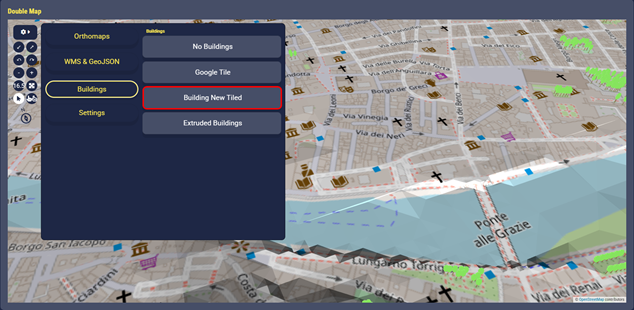
Fig.1
Switch to select mode on the left and choose one of the buildings displayed
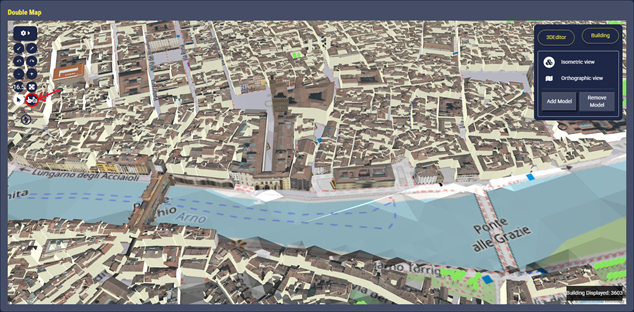
Fig.2
Once a building is selected, its metadata are shown on the right and the user can choose to switch to other available 3D models
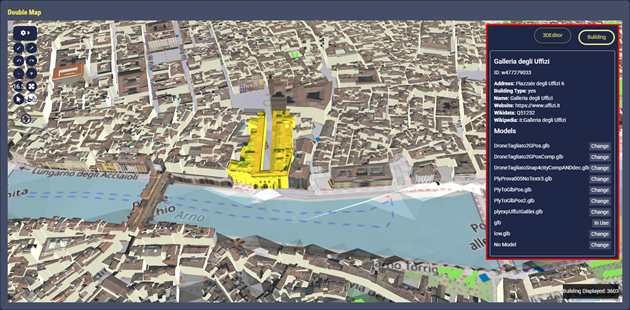
Fig.3
The user can switch to 3DEditor to load a new model (.glb) from his PC and start editing it using CTRL to interact with the Gizmo:
Position → keyboard key 1 (default option)
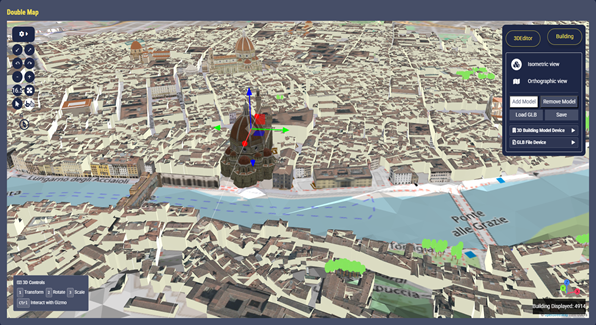
Fig.4
Rotation → keyboard key 2
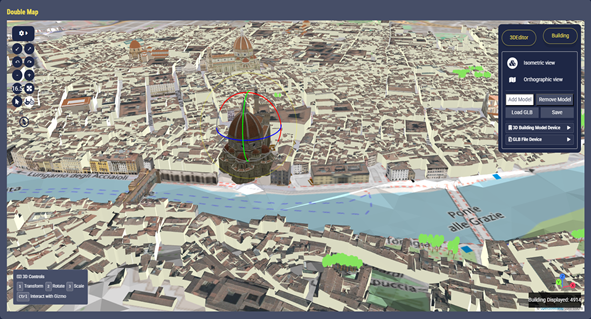
Fig.5
Scale → keyboard key 3
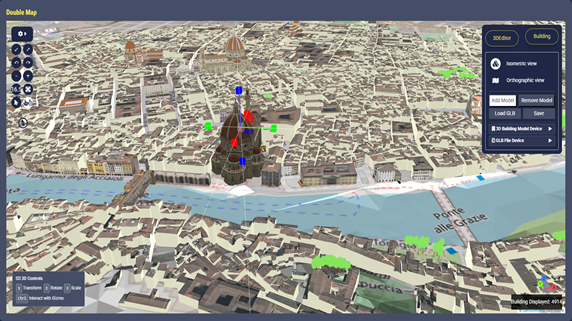
Fig.6
Orthographic View to see the map from a top-down perspective with no distortion
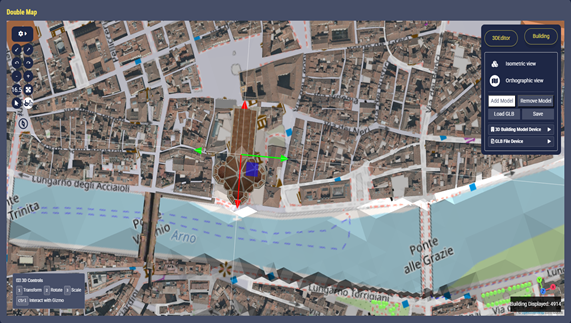
Fig.7
Once complete the 3D model positioning in the map, the user is asked to fill the forms to create the 3DModelBuilding entity and the fileModel entity to store information about the 3D model and its GLB file
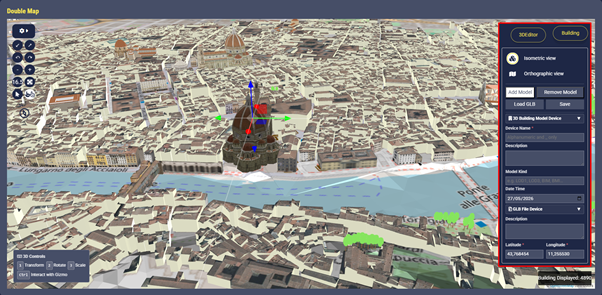
Fig.8
After that the 3D model has been saved and put in relation with the building entity, the user can select again the same building in the map and the new 3D model will be immediately displayed in the list, with the name previously given by the user.
The loaded 3D files are created as private devices with ownership assigned to the user that loaded the 3D model. Therefore, only the owner can actually substitute the building default model with the new loaded ones. Other non-authorized users will not be able to access 3D models for which they do not own the property or sufficient delegations.
The following data in LIDAR format have been provided by the research lab of Prof. Grazia Tucci del DICEA, UNIFI, https://www.unifi.it/en/node/7771 in the context of the project to create a 3D digital twin of the Arno River, specifically the stretch that runs through the historic heart of Florence: from Ponte alle Grazie to Ponte alla Carraia, passing through Ponte Vecchio.
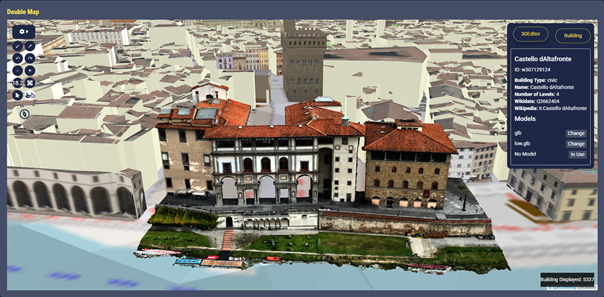
Fig.9: File compressed with DRACO at 0.3 ratio
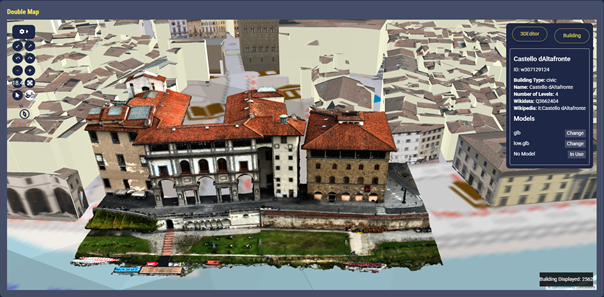
Fig.10: File compressed with DRACO at 0.1 ratio
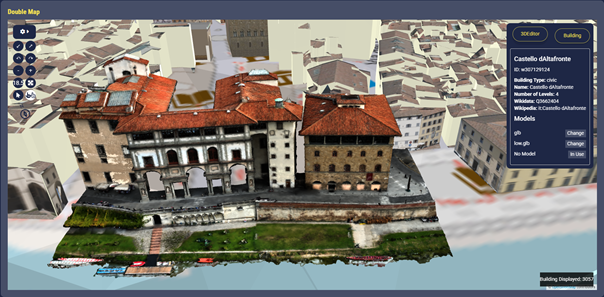
Fig.11: File compressed with DRACO at 0.05 ratio
This page describe a Snap4City tool to let the user add new 3D models to existing building entities, thus enabling what-if functionalities via creation of alternative scenarios.
- the user can load new 3D model to the Snap4City knowledge base
- the user can modify the loaded 3D model to choose its position, orientation and scale inside the digital twin city
- once the user has loaded and positioned the new model can be retrieved and rendered I the city.
Note that the user who want to add a new 3D model to an existing building entity must own the entity, or, at least, he must have a delegation to write in order to modify the entity.
The solution exploits, integrates, and extends the following libraries:
- Deck.gl is a high-performance geospatial visualisation library. It is designed to display and animate very large datasets on a map. It handles well clicking an object to query its data, but not grab it, move it, rotate it, or deform it. There is no built-in concept of an edit session, a gizmo, or a transform handle. The library also has no file import pipeline: it renders data that already lives in a server-side tile or dataset; it cannot load an arbitrary GLB file chosen by the user at runtime and place it freely on the map.
- Three.js is a full 3D scene editor toolkit. It provides a GLTFLoader that can load any GLB file the user selects from their computer, and a GLTFExporter that can write the result back to a file with all edits baked in. It also provides raycasting and scene lighting.
To implement the Three.js editor functionalities of loading, positioning, scaling and rotating a 3D model, a dedicated class was built on top of Deck.gl base Layer class that drops a Three.js scene into deck.gl's own render pipeline, sharing the same map projection and the same depth buffer. The user's custom model therefore sits correctly in space relative to the real buildings around it — it is occluded by terrain and other pre-existent buildings, and it moves with the map when the user pans or zooms — without any of the existing layers needing to change. With this implementation the user can now open the 3D editor, pick any GLB file from their computer, see it appearing on the map at the current view position, and interactively drag it to the exact building footprint they want, rotate it to the correct orientation, and scale it. Once satisfied, the user can save the loaded 3D model: the editor bakes all those edits into the file's geometry and send it to the Snap4City platform as a new file entity, updating the building entity accordingly, and making the new 3D model immediately available in the building's model catalogue for the user to select.
To make this real time editor usable, the buildingModel (reported in the following) has been updated to a new version (buildingModel_v2) to handle the novel 3D model addition functionality.
Note that, to ensure backward compatibility with existing building entities based on previsous buildingModel, a fallback workflow has been introduced. Upon selecting a building, the application first looks for an entity with the corresponding OSM ID of type buildingModel_v2. When a match is found, the entity details are displayed and the 3D editor functionality is activated, enabling the addition of new 3D models. If no corresponding entity of buildingModel_v2 type exists, the system falls back to buildingModel, displaying only the building information available in the legacy model and disabling the 3D editor.
Every time a new 3D model is added, two new entities are created according to the following models:
- fileModel: a model to store a reference to the actual binary saved file
- 3DBuildingModel: a model to store information about the 3D model such as a description, the level of details and the SURI of the device that stores the actual binary file using the FileManager
The entities of type 3DBuildingModel are then associated with the building entity of type buildingModel_v2.
Hereafter details on the buildingModel_v2 and 3DModelBuilding are provided.
buildingModel_v2
|
Value Name |
Value Type |
Value Unit |
Data Types |
Notes |
|
dateObserved |
Timestamp |
ms |
string |
An ISO string |
|
city |
Geolocation |
text |
string |
|
|
address |
Geolocation |
text |
string |
It is made up of street and address number. If a building only has the key ’housename’, then that becomes its address. |
|
osmID |
Identifier |
ID |
string |
Building can be OSM ways or relations.When it is a way, the ID is attached to “w”,when it is a relation, a “r” is attached. For example, if building with ID 01234567 is a way, the osmID in Snap4City is w01234567. If is a relation, r01234567 |
|
nome |
Identifier |
ID |
string |
|
|
postCode |
Identifier |
ID |
integer |
|
|
description |
Status |
Some coded status |
string |
|
|
buildingType |
Status |
Some coded status |
string |
If the value of the building key is trivial (yes), it is replaced with one of the key values that can describe the building. |
|
numberOfFlats |
Count |
Number |
integer |
|
|
numberOfLevels |
Count |
Number |
integer |
|
|
numberOfUndergroundLevels |
Count |
Number |
integer |
|
|
capacity |
Count |
Number |
integer |
|
|
height |
Status |
Some coded status |
float |
|
|
isAccessible |
Status |
Some coded status |
string |
|
|
website |
URL link |
Web page |
string |
|
|
wikidata |
URI link |
ServiceURI |
string |
|
|
wikipedia |
URL link |
Web Page |
string |
|
|
groundShape |
Geometry |
Complex for the data structure |
JSON (GeoJSON) |
|
|
3DModelList |
dataStructure |
Complex for the data structure |
JSON |
This value contains the list of all the 3D Models related to the building. They could be either already inside the Snap4City environment or added by the user using a 3d editor model |
In particular the 3DModelList value is represented as a JSON object that is an array of strings where:
- the first is the local path where the default models are stored inside the Snap4city environment
- the others are SURI links related to entities created according to the 3DModelBuilding model. Such entities are created during 3D model ingestion via the 3D editor
I.e.:
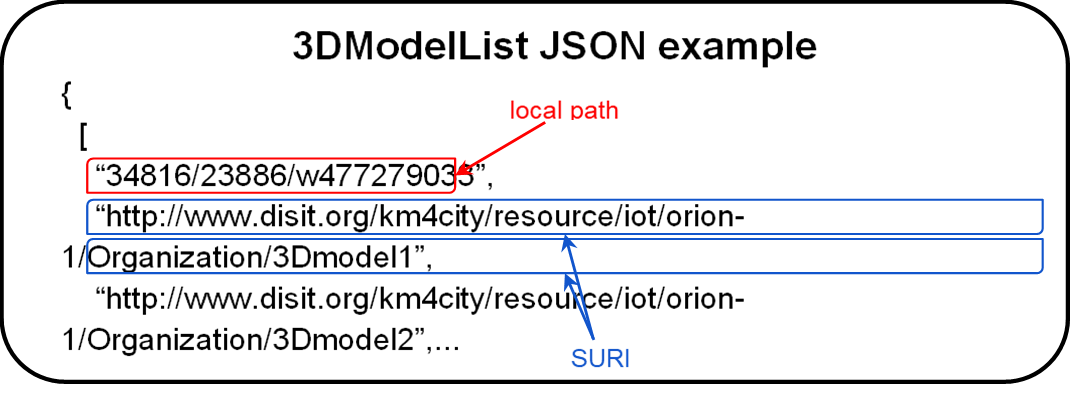
Fig.12
Note that, the previous model, buildingModel, did not provide the possibility to add new 3D models directly from an editor but instead included 3 more fields:
- 3DModel: stores the local path of the models associated to the building
- 3DModelKind: that indicates the kind of the 3D model
- 3DModelDescription: that add some information about the 3D model
In practice, in the previous version the details of the 3D model were instantiated directly in the building entity, limiting the possibility of handling diverse and multiple models.
|
Value Name |
Value Type |
Value Unit |
Data Types |
Notes |
|
3DModel |
Identifier |
ID |
String |
Path to the 3D file (e.g., glb/gltf) |
|
3DModleKind |
Identifier |
ID |
String |
String indicating the kind of the 3D model, e.g., LOD1, LOD3, BIM, ect. |
|
3DModelDescription |
Status |
SomeCodedStatus |
String |
Description of the 3D model |
3DModelBuilding
The 3DModelBuilding is a model to store information about the 3D model such as a description, the level of details and the SURI of the device that stores the actual 3D binary file, that is uploaded using the FileManager.
|
Value Name |
Value Type |
Value Unit |
Data Types |
Notes |
|
dateObserved |
Timestamp |
timestamp |
string |
|
|
dateTime |
Date |
timestamp |
string |
Date reference to create some what if scenarios |
|
file |
URI link |
ServiceURI |
string |
link to the SURI of the device with information of the actual binary file is stored |
|
description |
Entity Description |
text |
string |
|
|
modelKind |
Entity Description |
text |
string |
Level of Detail of the 3D model |
The file value refers to an entity with model type FileModel that stores the reference to the actual binary file inside the Snap4city environment. This way, once a 3D model is loaded and assigned to a building device and saved thanks to the FileManager, the user can swap between that model and the default ones.
3D Model required specs
In order to allow the loading of new 3D model, such model must be in gltf/GLB format and must satisfy some specifics:
- GBL file should have a material, otherwise the vertex colours associated could be seen as corrupted values
- DRACO compression is supported for GLB files. The maximum supported size for a DRACO-compressed GLB file is 50 MB; larger files cannot be loaded or visualized.
- GLB file must include one and only one mesh
- END---
