Snap4City does support working with GTFS, but there are two different levels:
1. Importing / ingesting GTFS into Snap4City: Snap4City supports GTFS as an input format through its ETL process. The documentation says ETL can process formats including “HTML, JSON, GeoJSON, XML, CSV, XLS, KMZ, Shape, GTFS…” and then store the data in Big Data storage / Knowledge Base for dashboards, analytics, ServiceMap, etc. There is also a specific tutorial: “How to Create GTFS File Ingestion via ETL”, using Helsinki as an example.
2. Editing GTFS / transit trips: Snap4City now documents a beta GTFS editor on Dashboard, called BusMap. It is described as an interactive public transit explorer widget that lets users browse agencies, stops, lines, trips, and timetables. BusMap is an interactive public transit explorer widget usable in the Snap4City dashboard. It shows bus stops and routes on a map and lets you browse lines, trips, and timetables. There are two ways to start: click on the map or browse by agency.
The panel has four tabs:
- Agency : List of transit agencies (starting point)
- Lines : Lines passing through a selected stop
- Trips : Directional trips (A→B, B→A) for a selected line
- Stops : Individual stops for a selected trip
At the top there is a Radius (m) field that controls how far from a map click the system searches for stops (default: 200 m).
Figure 1: https://www.snap4city.org/dashboardSmartCity/view/Gea-Night.php?iddasboard=NDk5Mw==
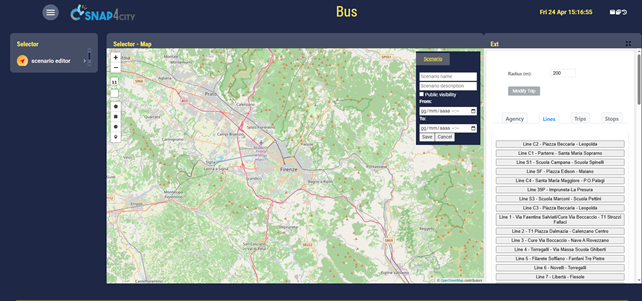
WORKFLOW 1 — START FROM THE MAP
- Click anywhere on the map. A location marker appears. Bus stop pins (blue squares with the bus logo) are placed within the configured radius. The Stops tab lists them by name.
- Click a stop pin on the map OR click a stop name in the Stops tab. The Lines tab opens and lists every line using that stop, each with a distinct colour for each line. All line routes are drawn progressively on the map may require a few seconds.
- Click a line. The Trips tab opens and shows all directional trips for that line (e.g. "Station A → Terminal B" and “Terminal B → Station A” are different lines).
- Click a trip. All other routes are removed and only that single trip remains drawn. The Stops tab list the stops for that line in order. A "Show stops on the map" button appears, click it to place pins on each stop of that line click again to hide them.
Figure2: https://www.snap4city.org/dashboardSmartCity/view/Gea-Night.php?iddasboard=NDk5Mw==
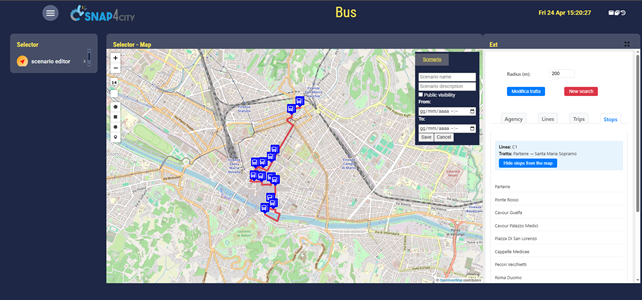
WORKFLOW 2 — START FROM AN AGENCY
Same procedure, but instead of clicking on the map to load all stops in a certain radius it shows all the stops for a certain agency clicked in the list of all available agencies. Then if a bus stop is clicked the procedure is the same as above.
Figure 3: https://www.snap4city.org/dashboardSmartCity/view/Gea-Night.php?iddasboard=NDk5Mw==
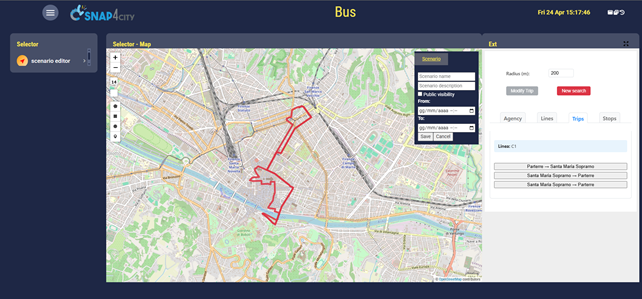
MODIFYING A TRIP (EDIT MODE)
After selecting a trip, the Modify Trip button (top-left) becomes active.
- Click "Modify Trip". The normal tabs are replaced by an edit panel listing all stops in order for that line, each with its scheduled departure from each stop.
- Drag stop markers on the map to reposition them. When you drag a stop, its row is highlighted and the name and time become editable, also the routing algorithm tries to replan a path with all stops and your modified one.
- Edit the stop name (optional) by typing in the name field.
- Edit the departure time by changing the time input. Times cannot be set earlier than the original scheduled time (the field turns red).
- Click the green checkmark (✓) button to confirm.
- When confirming a time change, a modal asks:
- "Only this stop", it updates only the stop you edited
- "This and the following", shifts all subsequent stops by the same time difference you inputted.
- Click "Save JSON" to export the modified trip. A modal shows the full JSON. You can Copy it to the clipboard or Download it as a .json file (named tratta_<line>_<date>.json).
- Click "Exit" (or the yellow Modify Trip toggle button) to leave edit mode and return to the normal view.
Figure 4 https://www.snap4city.org/dashboardSmartCity/view/Gea-Night.php?iddasboard=NDk5Mw==
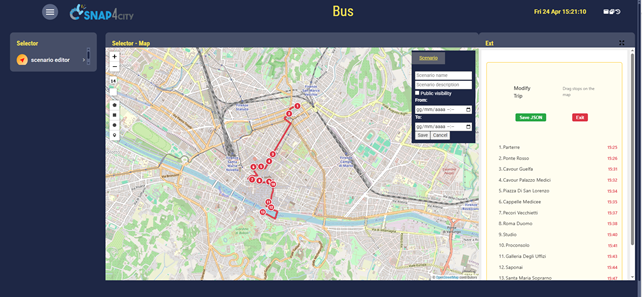
RESETTING / STARTING OVER
Click the New Search button (red, top-left, visible once you have navigated past the starting state). This clears all pins, routes, and selections and returns to the initial agency list and starts the widged clean again.
NOTES
- Loading spinner gif: a spinning icon appears during any network request. Buttons are disabled while loading to prevent conflicting actions.
- Stops tab clickable only at the right state: clicking a stop name in the Stops tab only triggers a line lookup when you are at the initial "idle" state (i.e., before selecting any line or trip). After selecting a trip, the list is read-only.
- Route colours: up to 10 distinct colours are cycled. The same colour is used consistently across the Lines, Trips, and Stops tabs for a given line.
- Categories searched: bus stops, train stations, tram stops, and ferry stops are all included in map-click radius searches.
-- end --
