The Router with What-if functionality has been developed and enforced in Snap4City with the aim of providing a versatile and easy-to-use tool for finding routes among points on map. It also let user to study possible outcomes of making some changes in “real-life scenarios” context, trying to respond to the answer “What if ... ?”. It’s based on Graphhopper v7.0-pre2.
https://www.snap4city.org/download/video/SOLUTION-Advanced-Routing-2025-v02.pdf
The main functionalities of our routing solutions are:
- modal routing: private vehicles, bikes, pedestrian
- with start, end and multiple intermediate points
- selecting: shorter, faster, quitter, etc..
- dynamic conditional routing taking into account the effective traffic flow status, or typical traffic flow status
- dynamic conditional routing taking into account eventual blocked areas (by scenario) for exmaple for street working, restoring, etc. (what-if cases and analysis)
- multimodal routing for the city users to walk and take the public collective transport
- modal routing for public administrations (ambulance, fire brigade, police, busses, etc.) exploiting the reserved lanes, etc.
- a combination of the above cases.
- Full API for the exploitation of your applications: https://www.snap4city.org/1107
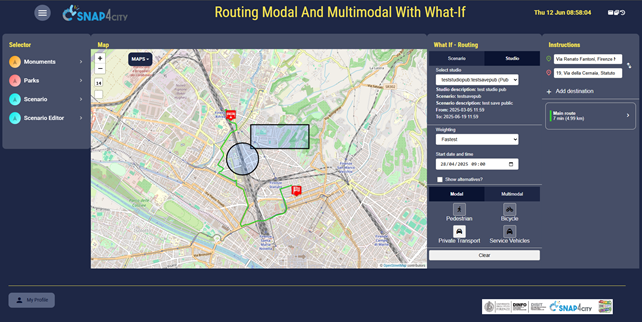
In figure below is presented a screenshot of a Snap4City dashboard/application that let user to interact with these tools. As you can see, a map is used as benchwork while on the left and right sides of the map are placed interactive panels and buttons. All the functionalities are accessible only to registered users, and the registration is free of charge, some authorisation may be needed in some platforms.
Figure.1
Requirements (only for multimodal routing)
Router needs some geographical and gtfs data to work with, provided from Snap4City. User needs only to pay attention to use the same context of that data to make things work. (e.g. if router works with Florence map and public transport, user should not search routes outside the city).
Example
Let’s build step by step a demo in Florence, trying to connect some places.
Routing
Starting with the core functionality, user can add two or more points on the map.
To do that, user can
- clicking on map. In this case a popup appears asking which type of waypoint user want to add: start, intermediate or finish. User can add only one start/finish pin (trying to add again results in moving that pin) and multiple intermediate. Intermediate can be deleted from top right panel.
- writing down the address in textual form in the top-right panel. A list of suggestions is presented while searching and to confirm the position one of it must be chosen.
In this case “Add destination” button add intermediate type pins and “Swap” button let reverse the order of the pins. This feature is available only when there is exactly one start pin one finish pin placed on map.
At least a start point and a finish point are needed to start routing.
In our example let’s find a way to go from Piazza della Stazione to Facoltà di Ingegneria.
Figure.2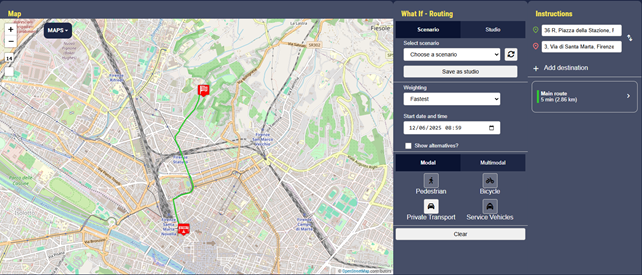
Router assigns default values to some parameters:
- weighting: the route rules, set as fastest. Possible values are fastest, fastest with traffic, shortest, short/fastest (a hybrid profile that blends a trade‑off between shortest distance and fastest time).
- startDatetime: the datetime used by the router to start, set as the current timestamp.
- vehicle: the vehicle used to move, the default is car. Possible values are pedestrian, bicycle, car (aka Private Transport), taxi/emergency vehicles (aka Service Vehicles) for modal and bus for multimodal. Multimodal means a route that intergrates walking and public transit segments.
- avoid_area: used in what-if case and later debate, now empty.
User can modify weighting, startDatetime and vehicle values changing them in What If - Routing panel.
Show alternatives checkbox let user choose if he wants to see more alternative routes, if there are any. By default if unchecked and returns only the main route.
In the other panel (Instructions) user can see the list of possible routes and, if opens the panel clicking on the box, the detail of the selected route, with textual instructions. Placing the cursor over a single instruction let user see its position on map, by a pin.
Multiple alternatives are shown with different colors and multimodal routing paths have a bi-colored label, to indicate pedestrian and public transit segments.
Figure.3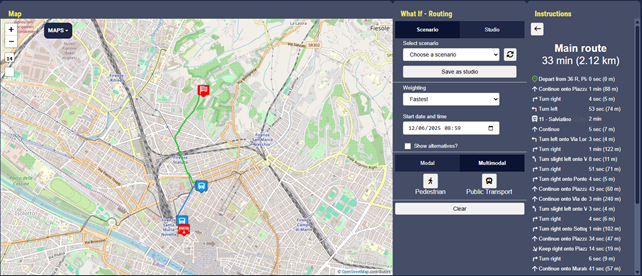
The second functionality is an extension of routing: while connecting two points, how can user avoid certain areas? How is the route modified?
The first action that user can take is to open the scenario panel to draw on the map polygons that represent the to-be-avoided areas. They can be points, circles and polygons.
Once the scenario is drawn, it can be saved, giving it a unique name and a visibility: public ones can be seen from everyone, private only from the creator.
Figure.4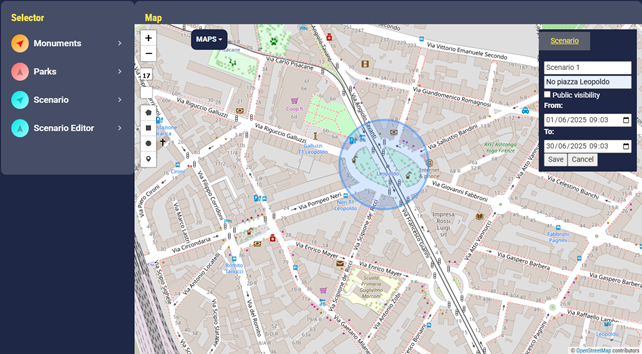
Scenarios can be loaded from the corresponding panel and the router can be used on it.
Scenario and router can be saved and loaded as studio for future use. Studio can not let pins be edited, only routing params.
Figure.5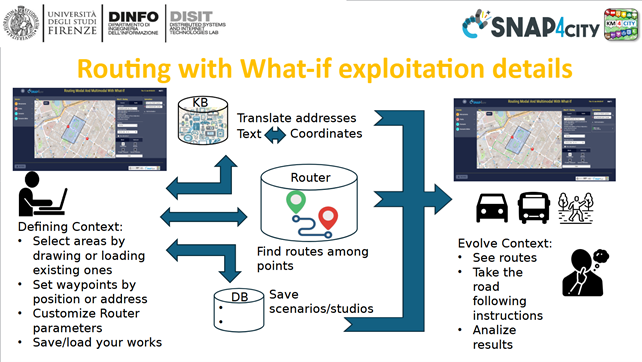
In the image above the use case of the tool: after the user has defined the context and the apis have done the magic, the user himself can act based on his proper role:
- The end-user needs guidance to move from a place to another.
- The operator studies possible scenarios to take decisions to implement in the real-life context.
-- end --
